Sharing and inviting
You’ve built your conversation. Now get people into it. holito gives you a few ways to share.
Your sharing options
They appear right after you create a conversation, and any time from the Invite button on its page.
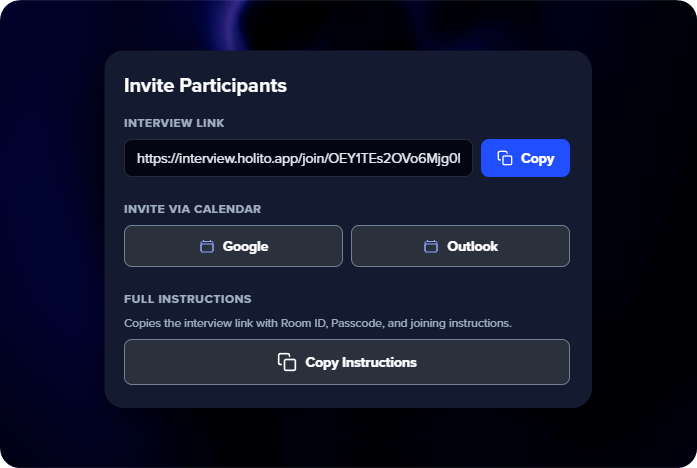
- Copy link - A direct invite. Anyone who clicks it can start talking to hollie straight away, no account needed.
- Invite via calendar - Add it to Google Calendar or Outlook in one click. The event carries the link, room ID, passcode, and how to start.
- Full instructions - A ready-written message with everything a person needs: the link, room ID, passcode, and the first step. Paste it into an email or Slack.
- Personalise link - Add someone’s details ahead of time so they skip setup and get to hollie faster.
- Embed on your site - Drop hollie straight onto your page as a button or her orb.
Personalised links
Pre-fill someone’s details so they go straight to hollie.
Available fields:
| Field | Example |
|---|---|
| Name | Jane Doe |
| jane@company.com | |
| Job | Product Manager |
| Company | Acme Inc |
Using the invite screen
Click Personalise link, fill in the fields, and copy the generated link.
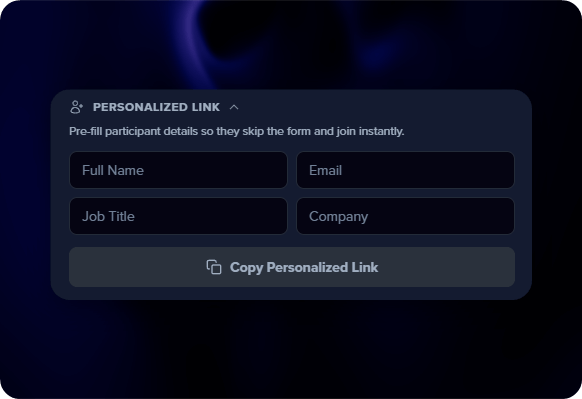
When every required field is already filled in via the link, the person skips setup entirely and goes straight to choosing their microphone and language. The fastest path to a finished conversation.
Building a link by hand
You can also build personalised links yourself by adding details to the end of your invite URL. Handy when you’re sending to a list and want each link tailored.
https://interview.holito.app/join/your-invite-hash?name=Jane+Doe&email=jane@company.com&job=Product+Manager&company=Acme+Inc
Use + for spaces. Mix and match any of these:
?name=Jane+Doe
&email=jane@company.com
&job=Product+Manager
&company=Acme+Inc
Custom metadata
Attach up to 6 custom key-value pairs to any invite link using meta_ followed by any label you choose:
?name=Jane+Doe&email=jane@company.com&meta_source=email_campaign&meta_segment=enterprise
This shows on each response and is handy for:
- Attribution - Track which campaign, channel, or ad a response came from
- Segmentation - Tag responses by tier, plan, or region
- Internal IDs - Attach user IDs, account numbers, or CRM references for easy matching
Embedding on your site
From Invite, open Embed on your site. Choose hollie as a button or as her orb, copy the snippet, and paste it into your page. Set the allowed domains to control where it can run, or leave them empty to embed it anywhere.
Where to share
- Email - The strongest channel. Personalise each link with the recipient’s details.
- Slack or Teams - Drop the full instructions into a relevant channel. The message has everything people need.
- Social - Share the link publicly for open community feedback. Great for community-driven products.
- Your site or app - Add it as a button, embed hollie directly, or slot it into a post-purchase step.
Example email
Hi Jane,
We’d love to hear how [Product] is working for you. It takes about 5 to 10 minutes, just a relaxed conversation with hollie.
Thanks!
The best moment to ask is right after a win: a smooth onboarding, a solved ticket, a milestone hit. Catch people while they’re happy and engaged.
Getting more responses
- Fill in details ahead of time - Less typing means more finishes
- Keep it personal - “We’d love your take” beats “complete our survey”
- Set expectations - Tell people it’s 5 to 10 minutes
- Share the why - Explain how their answers get used
- Follow up once - A gentle nudge to non-responders goes a long way