Managing responses
As conversations finish, responses land on your dashboard. Each one gives you a full transcript, video or audio playback, and a report built for you.
Your dashboard
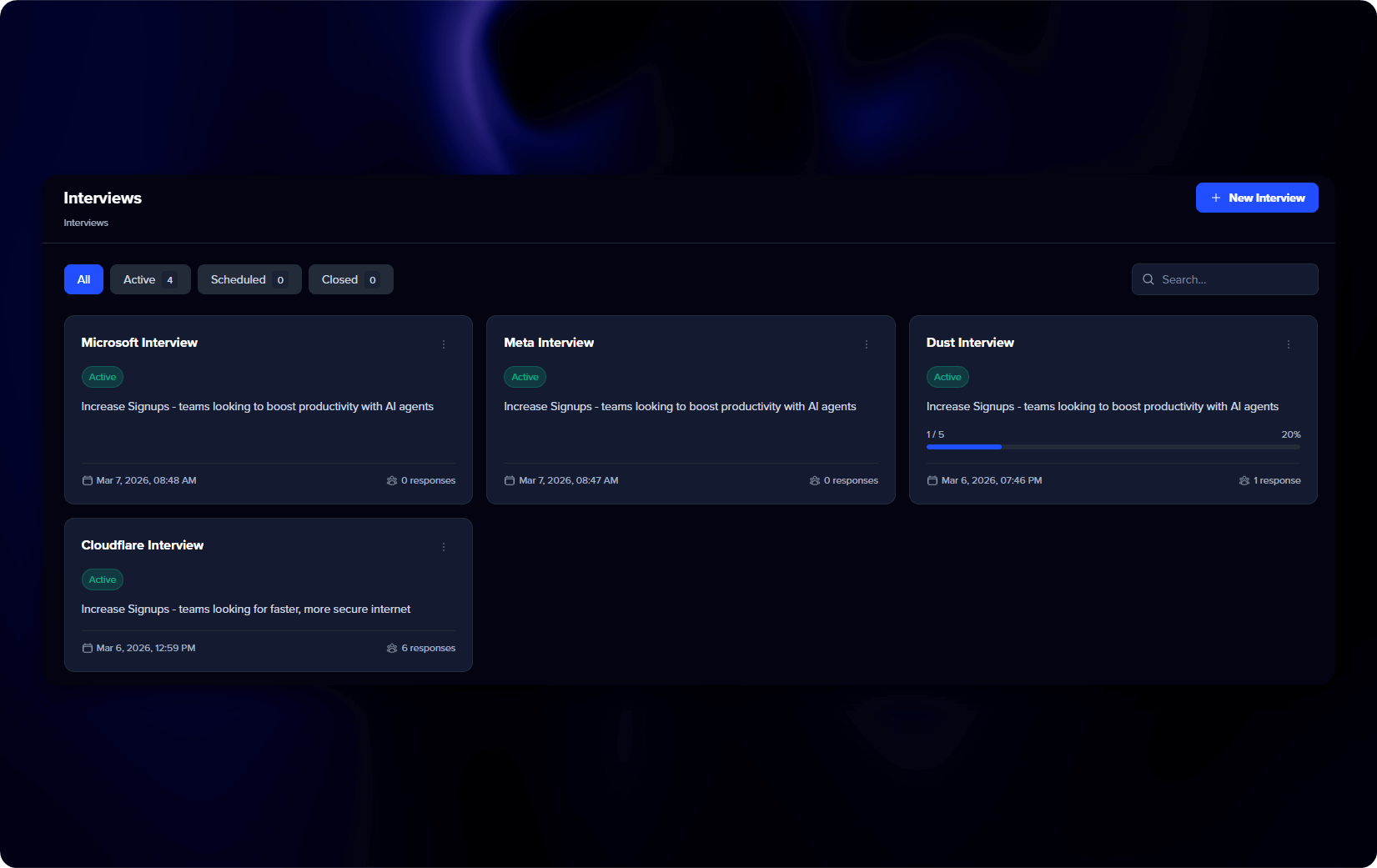
Every conversation in one place. Filter by status, All, Active, Scheduled, or Closed, or search by name. Open any one for its detail page.
Inside a conversation
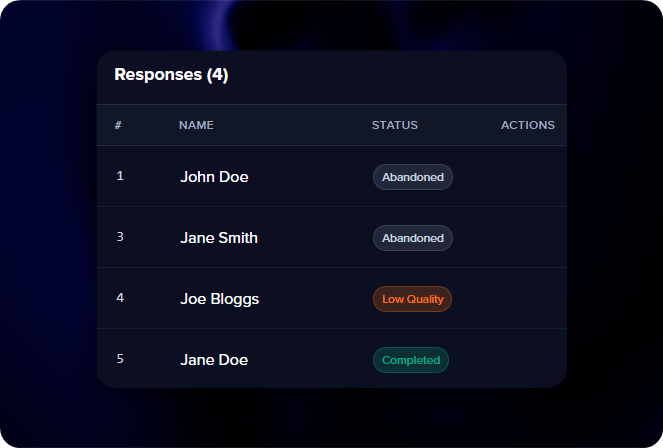
Move between individual responses, or pick All responses for the combined view once two or more are in.
Each response opens on three tabs:
- Overview - The report for this conversation. See Understanding reports for everything it holds.
- Video & transcript (or Audio & transcript) - The full conversation with speaker labels. For video, the transcript syncs to the player: click any line to jump to that moment.
- Marketing - Draft publication-ready content from the conversation, including case studies and expert articles.
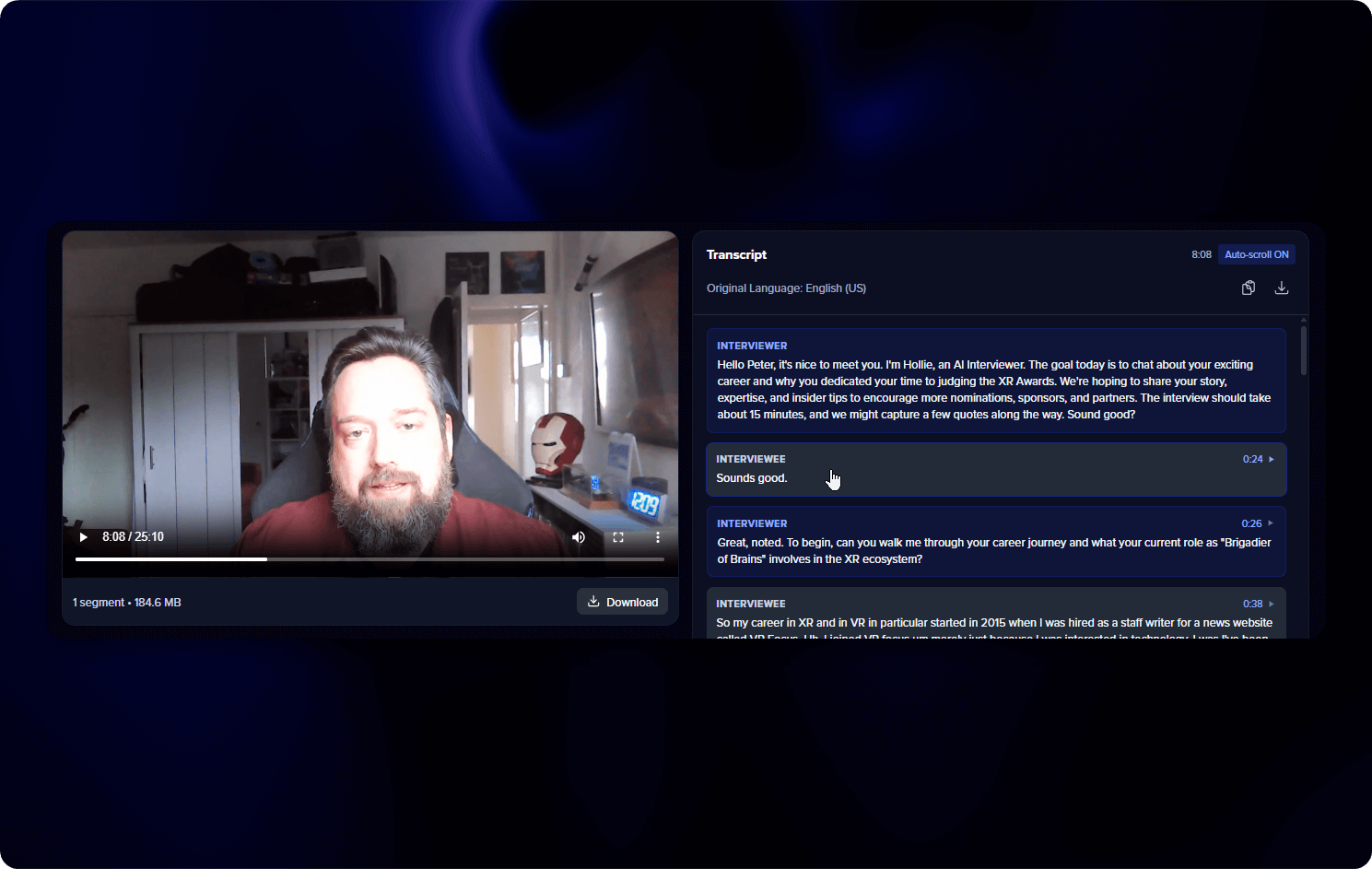
Quotes in the report link to where they were said. Click one to land on that exact point in the transcript.
Who you talked to
The Guest panel holds the person’s details: name, email, job, company, and LinkedIn. You can edit them here. Alongside it, Response data shows the status, when the conversation was created and completed, the number of turns, verified quotes, and duration.
Response statuses
| Status | What it means |
|---|---|
| Completed | hollie finished the conversation |
| In progress | Someone is talking to her right now |
| Abandoned | They left before the end |
| Low quality | Not enough came out of it to use |
Tidying up
From the dashboard or a conversation’s page, you can:
- Close or Reopen - Stop taking new responses, or start again. The link shows a closed message while it’s shut.
- Clone - A fresh copy with the same setup.
- Delete a response - Remove a single response, with its transcript, video, and everything tied to it.
- Delete a conversation - Remove it and everything in it.
Deleted responses and conversations cannot be recovered. Save anything you need first.