Advanced settings
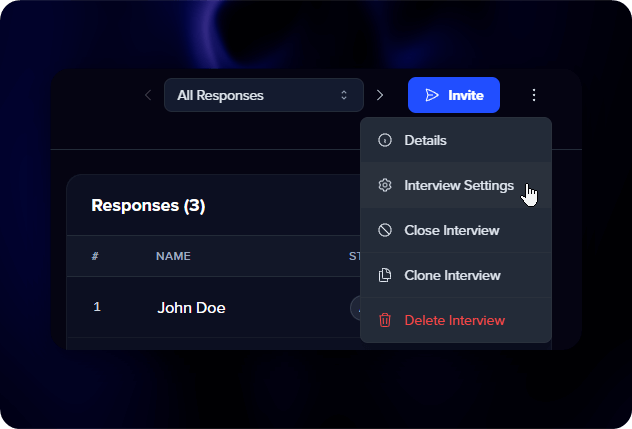
Open Settings while building a conversation, or from the menu on any live one, to fine-tune how hollie works.
The goal
A sentence or two on what you’re really after. It steers hollie’s tone and the follow-ups she chooses, so it’s the single setting that most shapes what you get back. “Capture success stories for case studies” and “find out what nearly stopped them buying” pull the conversation in very different directions.
Format
- Audio - Voice only. The default.
- Video - Camera and audio, for visual testimonials.
- Require camera - With video on, make the camera mandatory so no one drops to audio only.
- Allow screen sharing - Let hollie ask people to share their screen mid-conversation, so she can see what they’re describing.
Language
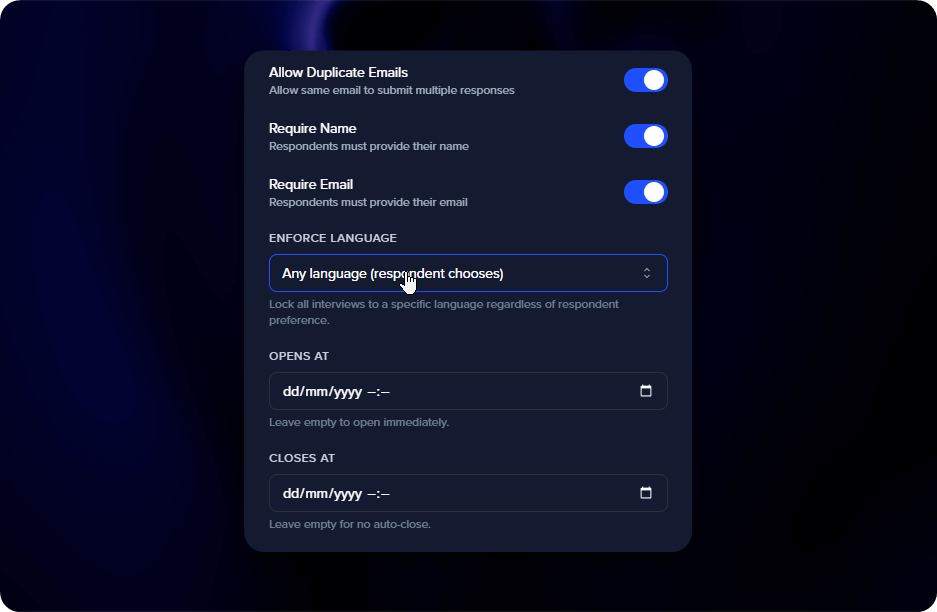
- Conversation language - By default each person speaks in their own. Lock it to one when your team reads a single language, you want consistent data, or you’re targeting a specific market.
- Content language - The language for your transcripts, reports, and case studies.
View all 20 supported languages
| Language | Native name |
|---|---|
| English (US) | English |
| French | Français |
| German | Deutsch |
| Spanish (US) | Español |
| Portuguese (Brazil) | Português |
| Italian | Italiano |
| Dutch | Nederlands |
| Polish | Polski |
| Russian | Русский |
| Turkish | Türkçe |
| Japanese | 日本語 |
| Korean | 한국어 |
| Thai | ภาษาไทย |
| Vietnamese | Tiếng Việt |
| Indonesian | Bahasa Indonesia |
| Hindi | हिन्दी |
| Bangla | বাংলা |
| Tamil | தமயழ் |
| Telugu | తెలుగు |
| Arabic | العربية |
Response collection
- Max responses - Cap how many people can take part. Hit the cap and the conversation closes itself. Leave it blank for unlimited. Each response uses one credit.
- Allow duplicate emails - On by default. Turn it off to let each person in once.
- Require name and Require email - Ask for a name or an email before hollie starts. Useful for follow-ups or matching answers to your records. Leave both off for a fully anonymous conversation.
- When to collect identity - Ask for those details before the conversation, after it, or never.
Scheduling
- Opens at - A future date when the conversation goes live. Leave empty to open straight away.
- Closes at - A deadline after which no new responses come in. Leave empty for no auto-close.
You can pair these with a max-response cap for full control, for example “up to 20 responses between March 1 and 15”.
When it ends
Choose what people see when they finish: a thank-you message you write, or a redirect to a page of your own.
Managing a live conversation
The menu on any conversation also lets you:
- Invite - Open sharing to send the link
- Close or Reopen - Stop or restart taking responses
- Clone - A fresh copy with the same setup
- Delete - Remove it and all its data
Deleting a conversation removes everything: every response, transcript, video, and report. This cannot be undone.